Không thể chọn None khi tôi thay đổi thông tin về chi trả của Apple ID ? (Why can’t I select None when I edit my Apple ID payment information?)
When you try to edit your payment, credit card, or billing information in the iTunes Store, App Store, iBooks Store, or Mac App Store, you might not be able to select None. (Khi bạn thử thay đổi thông tin về chi trả (TTCT) , về thẻ tín dụng hay về hóa đơn tính tiền trong iTunes Store , Apple Store , iBooks store , hay Mac App store , có thể bạn ko chọn None được) .
You might not be able to see or select the None payment option for one of these reasons. If you don't want to use a credit card, you can use another form of payment, such as a gift card. (Bạn có thể ko thấy hay ko chọn None payment option vì 1 trong những lý do sau . Nếu bạn ko muốn dùng 1 thẻ tín dụng , bạn có thể dùng một dạng chi trả khác , như gift card) .
1/ If you have an unpaid balance or payment due . (Nếu bạn có một số dư chưa trả hay đến hạn trả tiền) .
You can't select None as your payment type until you pay your balance. (Bạn ko thể chọn None như là loại chi trả cho tới khi bạn trả số dư) . To see which order you need to pay for, view your purchase history on a Mac or PC. (Để xem hàng-đặt-mua nào mà bạn cần trả tiền , xem lịch sử mua hàng trên 1 máy tính Apple hay Windows) . When you sign in to the store, you might see a message that there was a billing issue with your last order. Click the Billing Info button to see the order.(Khi bạn đăng nhập vào cửa hàng này , bạn có thể thấy 1 tin nhắn là có vấn đề về hóa đơn với đơn đặt hàng mới nhứt. Nhấp vào nút Billing Info để xem đơn-hàng này) .
After you pay for the order, you can change your payment information to None. (Sau khi bạn trả cho món hàng này , bạn có thể thay đổi TTCT thành None) .
2/ If you're using the iTunes Store or App Store for the first time (Nếu bạn đang dùng iTunes Store hay App Store lần đầu) .
If you're using the store for the first time with an existing Apple ID, you must provide a payment method. (Nếu bạn đang dùng cửa hàng này lần đầu với Apple ID có sẳn , bạn phải cung cấp phương pháp chi trả (PPCT)) . After you create the account, you can change your payment information to None. (Sau khi bạn tạo tài khoản , bạn có thể thay đổi TTCT thành None) .
If you're creating a new Apple ID, you might be able to create an account without entering your credit card details. (Nếu bạn đang tạo một Apple ID mới , bạn có thể tạo 1 TK mà ko cần nhập chi tiết về thẻ tín dụng của bạn) .
3/ If you changed your country or region (Khi bạn đổi nước hay vùng)
When you change the country or region of an existing Apple ID, you must provide a payment method and update your billing options. (Khi bạn đổi nước hay vùng của một Apple ID có sẳn , bạn phải cung cấp PPCT và cập nhật các lựa chọn về tính tiền) .
If you want to remove your payment method after you change the country or region, you can change your payment information to None. (Nếu bạn muốn gở bỏ PPCT sau khi bạn thay đổi nước hay vùng , bạn có thể thay đổi TTCT thành None) .
4/ If you're a part of Family Sharing (Nếu bạn là thành viên của Family Sharing) .
When you set up Family Sharing, the family organizer must provide a payment method. (Khi bạn lập Family Sharing , ng tổ chức của gđ phải cung cấp PPCT) .
If your family includes a child account, the family organizer must use a credit card as the payment method. (Nếu gđ bạn gồm 1 TK trẻ em , ng tổ chức của gđ phải dùng 1 thẻ tín dụng như PPCT) .
This payment method will be used for all purchases initiated by family members and can only be changed by the family organizer. (PPCT này sẽ đc dùng cho mọi mua sắm từ mọi thành viên và chỉ đc thay đổi bởi ng tổ chức của gđ) .
Last Modified : Feb 11, 2015
Monday, March 2, 2015

Tạo 1 tài khoản trên iTunes Store , App Store , hay iBooks Store mà ko cần thẻ tín dụng hay phương pháp trả tiền khác . (Create an iTunes Store, App Store, or iBooks Store account without a credit card or other payment method) .
When you use your Apple ID to sign in to the
iTunes Store, App Store, or iBooks Store for the first time, you're
asked to enter a payment method so that you can purchase items from the
store. Follow these steps if you don't want to associate a payment
method with your account.Apple recommends using only one Apple ID for all
Apple features and services that use Apple ID. If you don’t remember if
you have an Apple ID, we’ll help you find it. (Khi bạn dùng Apple ID để đăng nhập iTunes Store , App Store , hay iBooks Store lần đầu tiên , bạn đc yêu cầu nhập phương pháp trả tiền (PPTT) để bạn có thể mua hàng từ cửa hàng này . Theo các bước sau nếu bạn ko muốn liên kết 1 PPTT với tài khoản của bạn. Apple khuyên bạn dùng chỉ một Apple ID cho tất cả các dịch vụ của Apple - mà đòi hỏi phải có Apple ID . Nếu bạn ko nhớ bạn đã có Apple ID chưa , chúng tôi sẽ giúp bạn tìm) .
A/ If you already have an Apple ID (Nếu bạn đã có sẳn Apple ID) .
If you've already created your Apple ID, you'll need to add a payment method when you first use it to sign in to the iTunes Store, App Store, or iBooks Store. But you can optionally remove the payment method after you sign in to the store. You won't be asked for a payment method again until you make your first purchase. (Nếu bạn đã tạo Apple ID , bạn sẽ cần thêm 1 phương pháp trả tiền (PPTT) khi lần đầu bạn dùng nó để đăng nhập vào iTunes Store , App Store , hay iBooks Store . Nhưng bạn có thể tự chọn gở bỏ PPTT này sau khi đăng nhập cửa hàng này . Bạn sẽ ko bị hỏi PPTT lần nữa cho tới khi bạn cần mua một món gì) .B/ If you don't have an Apple ID (Nếu bạn ko có Apple ID)
If you haven't created your Apple ID, follow these steps to create one and a store account at the same time, without adding a payment method using: (Nếu bạn chưa tạo ra Apple ID của bạn , hảy theo các bước này để tạo 1 Apple ID và một tài khoản (TK) trên cửa hàng cùng lúc , không cần thêm 1 PPTT bằng cách dùng :B1/ Create your Apple ID on a Mac or PC (Tạo Apple ID của bạn trên 1 laptop Mac hay PC của Apple) .
- Open iTunes, then go to the iTunes Store by clicking the iTunes Store button at the top of the window. (Mở iTunes , tới iTunes Store bằng cách nhấp vào nút iTunes Store ở trên cùng của cửa sổ .

- Scroll down and find the country flag in the lower-right corner of
the window. If it's not the flag of the country where you live, click it
and choose your country or region. (Kéo chuột xuống và tìm cờ quốc gia ở góc phải-dưới của cửa sổ . Nếu nó ko phải là cờ quốc gia nơi bạn sống , nhấp vào đấy và chọn nước hay vùng của bạn) .

- Go to the App Store, Music, TV Shows, or Books section of the store by clicking on one of the icons in the upper-left corner. (Đến Apple Store , Music , TV Shows , hay phần Books của cửa hàng bằng cách nhấp vào trong những icon (hình tượng) ở góc trái-trên) .
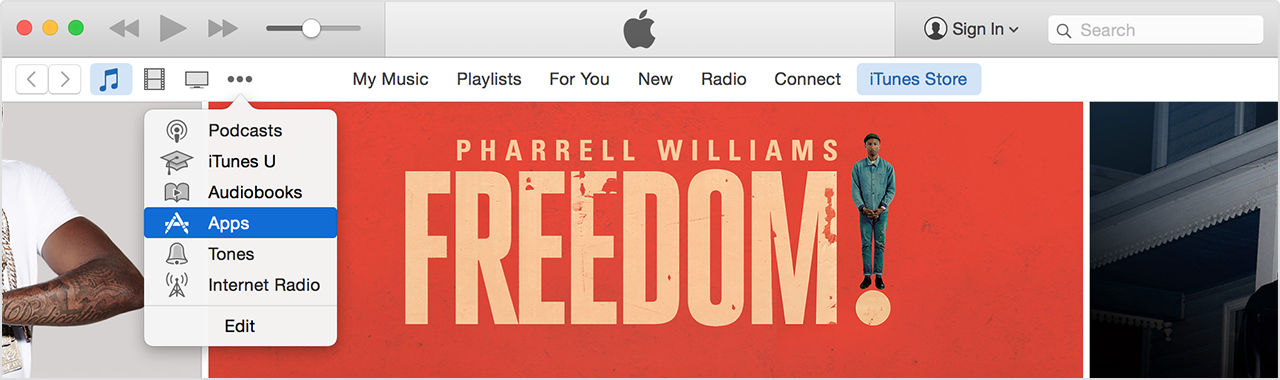
- Download a free app, song, video, or book. To find free items, look
in the right column of the window and click any link that includes the
word "Free," such as "Free on iTunes" or "Top Free." When you find a
free item, click Get beneath its icon. (Tải xuống app (ứng dụng) , bài hát , video , hay sách miễn phí . Để tìm những món miễn phí , nhìn vào cột phải của cửa sổ và nhấp vào bất cứ link nào có chữ "Free" , như "Free on iTunes" hay "Top Free" . Khi bạn thấy 1 món miễn phí , nhấp vào Get bên dưới hình tượng) .
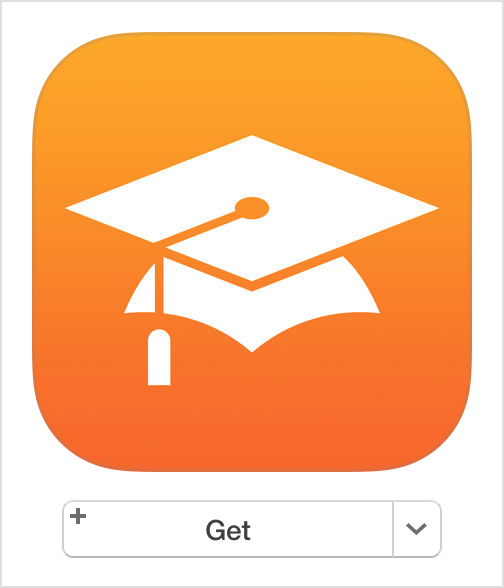
- When you're asked to sign in with an Apple ID, click Create Apple ID. (Khi bạn đc yêu cầu đăng nhập bằng Apple ID , hảy nhấp Create Apple ID) .
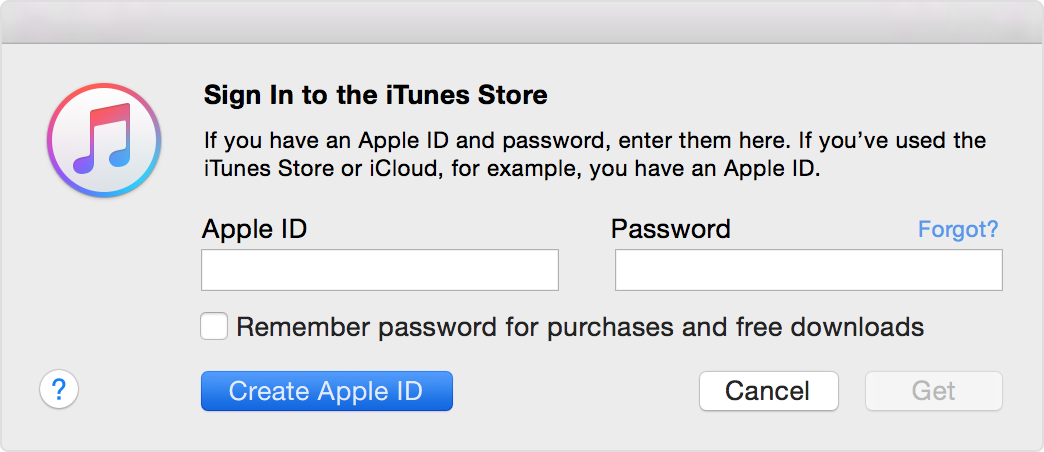
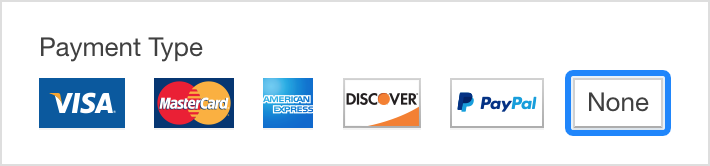
- Follow the onscreen instructions. When you're asked for payment information, choose None as the payment type. See what to do if None isn't showing or you can't select it. (Theo chỉ dẫn trên màn hình . Khi bạn được yêu cầu về thông tin về cách trả tiền , chọn None như là cách trả tiền . Xem làm gì nếu None ko có hay bạn ko thể chọn nó) .
- After you enter all of the information required, you'll be asked to verify your Apple ID by email. You must verify your Apple ID before you can begin using it. Didn't receive the email? (Sau nhập những thông tin được yêu cầu , bạn được yêu cầu kiểm chứng Apple ID của bạn bằng email . Bạn phải kiểm chứng Apple ID của bạn trước khi bạn có thể dùng nó . Nếu bạn ko nhận được email ? )
B2/ Create your Apple ID on an iPhone, iPad, or iPod touch (Tạo Apple ID trên 1 iPhone , iPad , hay iPod) .
- Open the App Store, iTunes Store, or iBooks Store on your iOS device. (Mở Apple Store , iTunes Store , hay iBooks Store trên các thiết bị chạy HĐH iOS) .
- Choose any free app, song, video, or book. (Chọn bất cứ app , bài hát , video , hay sách miễn phí) .
- Tap Get next to the item, then tap again to get it. (Nhấp nhẹ Get , kế bên món đó và nhấp lần nữa để có nó) .
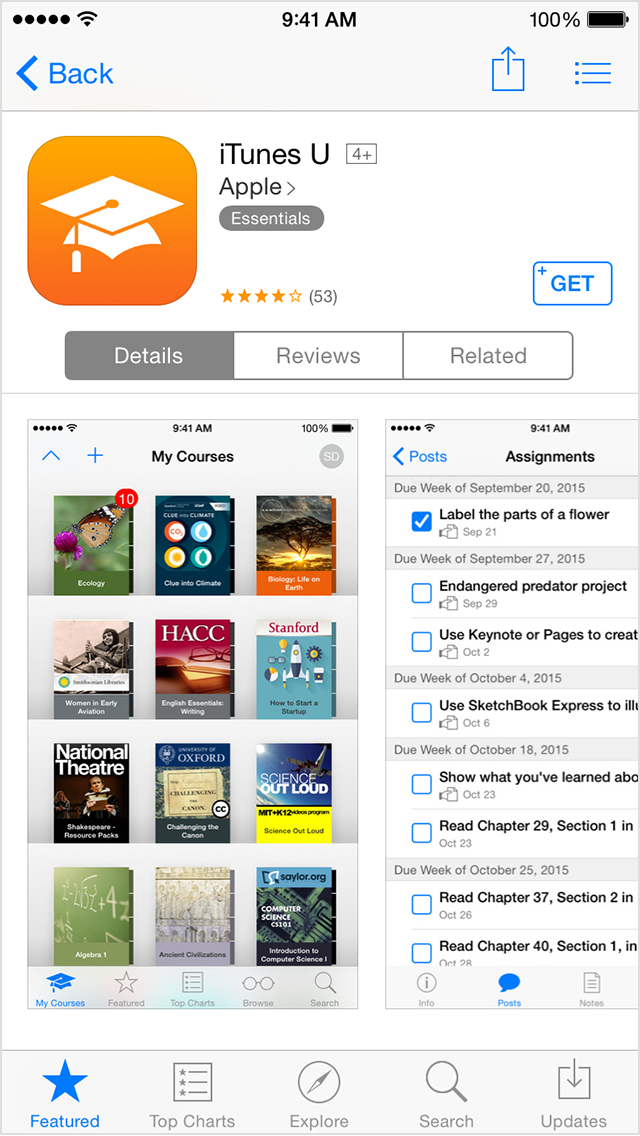
- When you're asked to sign in with an Apple ID, tap Create New Apple ID. (Khi được yêu cầu đăng nhập bằng Apple ID , nhấp Create New Apple ID) .
- Follow the onscreen instructions. When you're asked for payment information, choose None. See what to do if None isn't showing or you can't select it. (Theo các chỉ dẫn trên màn hình . Khi được hỏi về thông tin về cách trả tiền , chọn None . Xem phải làm gì nếu None ko có hay bạn ko thể chọn nó) .
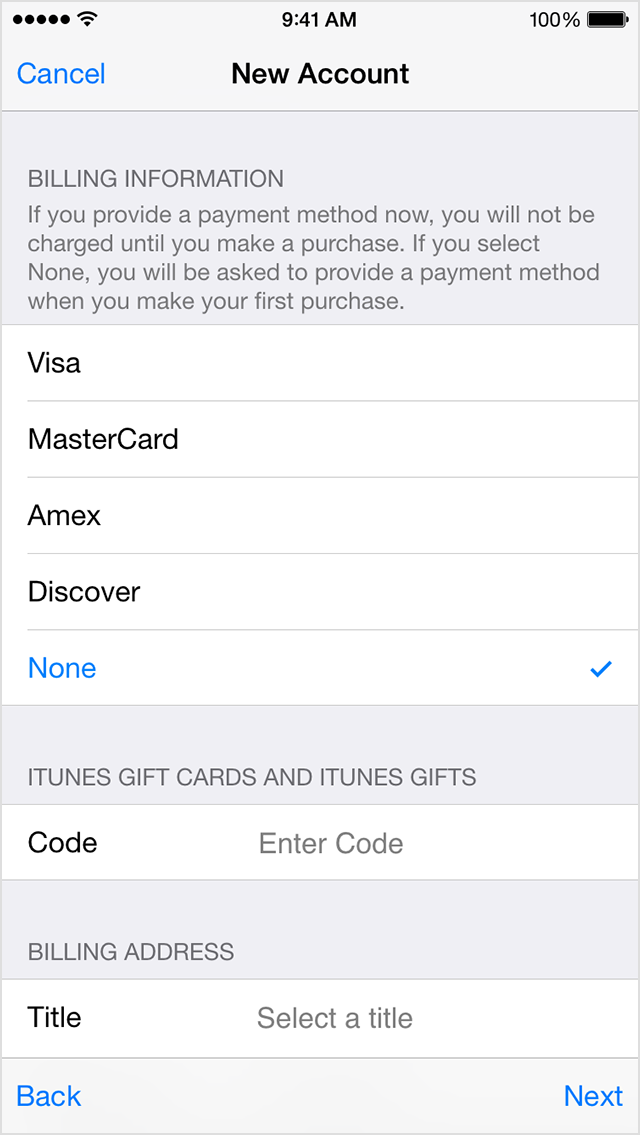
- After you enter all of the information required, you'll be asked to verify your Apple ID by email. You must verify your Apple ID before you can begin using it. : Didn't receive the email? (Sau khi nhập các thông tin được yêu cầu , bạn sẽ được yêu cầu kiểm chứng Apple ID của bạn bằng email . Bạn phải kiểm chứng Apple ID trước khi bạn có thể bắt đầu dùng nó . Nếu ko nhận được email thì sao ?)
Last Modified:
Sunday, March 1, 2015
Suy nghĩ vụn vặt về việc ăn Tết hay kiêng cử ngày Tết .
- Chẵng lẽ chúng ta chỉ tử tế với nhau hay vui chơi trong ba ngày Tết mà thôi , những ngày còn lại thì ko cần tử tế hay phải "kéo cày trả nợ" , v.v. . . --- Tài .
- No dồn đói góp -- Tục ngữ Việt nam . (Quanh năm thiếu thốn hay sống rất cần kiệm , nhưng lại no đũ thừa mứa hay xài xả láng trong mấy ngày Tết) . Tại sao phải như vậy ???
Tết vừa rồi , anh bạn trẻ thất nghiệp tá túc ở nhà tôi . Hôm mùng 6 tết , cô bạn của anh (dân công giáo) gọi phone cho anh và sau đó nói chuyện với tôi . Tôi nói , anh bạn trẻ này sao mà xui tận mạng , vì cứ thất nghiệp dài dài và ko làm chỗ nào lâu bền .
Cô nói , hôm nay là ngày Tết , chú ko nên nói như vậy (sic) !
Tôi giận quá , gác phone xuống và nói với anh bạn trẻ : nếu chú kiêng cử như ng khác , chú ko cho cháu ngủ trong nhà chú mấy ngày đầu năm âm lịch .
Hôm mùng 8 Tết , anh ta đã kiếm đc việc và ko còn ngủ ở nhà tôi .
Nhận xét : phong tục cử kiêng của ngày Tết đã ăn sâu vào tâm thức của ng VN , KỂ CẢ ng Công Giáo . Ngày đầu năm , họ cũng kiêng cử như sợ người "xấu vía xông đất" nhà họ , v.v... : cũng vì hiểu điều đó , ngày mùng 1 Tết tôi ko ra khỏi nhà , ko thăm viếng bạn bè trong chúng cư - như tôi thường làm quanh năm .
Chúng ta một năm sống 365 ngày , chẳng lẽ chỉ TỬ TẾ VỚI NHAU TRONG BA NGÀY TẾT , còn các ngày còn lại trong năm thì tha hồ mà đối xử TỆ hay "sát phạt" lẫn nhau .
Ngay sáu giờ sáng ngày mùng 1 Tết , (tôi đang ngủ) , một ng thân của tôi ở nước ngoài chúc Tết và cũng phân trần về nỗi khổ của gia đình anh . Anh nhiều lần xin lỗi tôi vì phải nói chuyện này trong ngày tết ; tôi trả lời , cứ nói vì đau khổ KHÔNG CHỪA ngày Tết .
Đúng như vậy : qua ngày mùng 2 , single mom cho biết đã cải nhau kịch liệt (gần như chửi nhau - theo lời cô) với mẹ cô vì các quan điểm trái nghịch !
Từ lâu tôi quan niệm : ngày đầu năm AL đánh dấu 1 năm mới theo truyền thống dân tộc , để chúng ta nhớ đến tổ tiên hay chúc tụng lẫn nhau , v.v... Người Nhật , từ lâu chỉ ăn tết dương lịch * trong MỘT ngày (nghĩa là họ ko ăn Tết AL) và sinh hoạt bình thường kể từ ngày thứ HAI của năm DL .
Họ cũng là một nước Á Đông , từng chịu ảnh hưởng của Khổng Giáo và Phật giáo như VN nhưng đã có ĐỘT PHÁ như trên về văn hóa và truyền thống .
Không biết chừng nào VN có đc đột phá này : chưa kể các HỦ TỤC như biếu xén hay hối lộ cấp trên ** nhân dịp tết mà CP Việt nam biết nhưng bó tay . . . Chưa kể tục "hái lộc" tại các chùa , đền , miếu để "năm mới phát tài , mọi sự như ý , thăng quan tiến chức , v.v..." và nhiều tục lệ khác trong đầu năm . Chính cái gọi là "văn hóa" hay "truyền thống dân tộc" này đã khiến VN đã tụt hậu *** so với các cường quốc trên thế giới hay các nước trong khu vực .
* Có lẽ áp dụng từ năm 1945 sau khi bị Mỹ chiếm đóng và cai trị ?
** Người Tây phương và các nước theo NHÀ NƯỚC PHÁP QUYỀN có hủ tục này ko ?
*** Chưa kể mấy trăm ng chết , hàng ngàn bị thương vì tai nạn do say sỉn trong mấy ngày tết !!! Và hậu quả kinh tế ko đo lường đc từ các TN này : chi phí thuốc men , tàn tật suốt đời , v.v...
Nói thêm : Theo một số kinh tế gia , việc VN ăn Tết quá lâu làm các thương nghiệp nước ngoài - có làm ăn với VN - rất khó chịu vì bị thiệt hại khi các cơ quan (hành chánh và kinh tế) của vn đều ăn tết theo truyền thống dântộc . / .
Các chợ Á đông hay VN tại mỹ đều tự động TĂNG giá * (các món hàng liên quan đến tết như rau quả mức bánh , v.v...) vào những ngày cuối năm AL ; trong khi lễ Giáng sinh hay Tết Tây các chợ Mỹ lại bán ĐẠI HẠ GIÁ để thu hút người mua !!!
Tôi ko hiểu điều này có xảy ra ở vn ko ?
30 mins · Like · 1
- Hong Nhat Tran : giá cả tăng vụt chứ làm gì co' đại hạ giá. Tết tiêu tốn không biết bao nhiêu tiền của xã hội
23 mins · Like
- Tai Tran : Đúng là HỦ TỤC : dịp cuối năm và Tết AL là lúc các con buôn "SÁT PHẠT , CHẶT CHÉM" người tiêu thụ như tăng giá - như vừa kể !
- Chẵng lẽ chúng ta chỉ tử tế với nhau hay vui chơi trong ba ngày Tết mà thôi , những ngày còn lại thì ko cần tử tế hay phải "kéo cày trả nợ" , v.v. . . --- Tài .
- No dồn đói góp -- Tục ngữ Việt nam . (Quanh năm thiếu thốn hay sống rất cần kiệm , nhưng lại no đũ thừa mứa hay xài xả láng trong mấy ngày Tết) . Tại sao phải như vậy ???
Tết vừa rồi , anh bạn trẻ thất nghiệp tá túc ở nhà tôi . Hôm mùng 6 tết , cô bạn của anh (dân công giáo) gọi phone cho anh và sau đó nói chuyện với tôi . Tôi nói , anh bạn trẻ này sao mà xui tận mạng , vì cứ thất nghiệp dài dài và ko làm chỗ nào lâu bền .
Cô nói , hôm nay là ngày Tết , chú ko nên nói như vậy (sic) !
Tôi giận quá , gác phone xuống và nói với anh bạn trẻ : nếu chú kiêng cử như ng khác , chú ko cho cháu ngủ trong nhà chú mấy ngày đầu năm âm lịch .
Hôm mùng 8 Tết , anh ta đã kiếm đc việc và ko còn ngủ ở nhà tôi .
Nhận xét : phong tục cử kiêng của ngày Tết đã ăn sâu vào tâm thức của ng VN , KỂ CẢ ng Công Giáo . Ngày đầu năm , họ cũng kiêng cử như sợ người "xấu vía xông đất" nhà họ , v.v... : cũng vì hiểu điều đó , ngày mùng 1 Tết tôi ko ra khỏi nhà , ko thăm viếng bạn bè trong chúng cư - như tôi thường làm quanh năm .
Chúng ta một năm sống 365 ngày , chẳng lẽ chỉ TỬ TẾ VỚI NHAU TRONG BA NGÀY TẾT , còn các ngày còn lại trong năm thì tha hồ mà đối xử TỆ hay "sát phạt" lẫn nhau .
Ngay sáu giờ sáng ngày mùng 1 Tết , (tôi đang ngủ) , một ng thân của tôi ở nước ngoài chúc Tết và cũng phân trần về nỗi khổ của gia đình anh . Anh nhiều lần xin lỗi tôi vì phải nói chuyện này trong ngày tết ; tôi trả lời , cứ nói vì đau khổ KHÔNG CHỪA ngày Tết .
Đúng như vậy : qua ngày mùng 2 , single mom cho biết đã cải nhau kịch liệt (gần như chửi nhau - theo lời cô) với mẹ cô vì các quan điểm trái nghịch !
Từ lâu tôi quan niệm : ngày đầu năm AL đánh dấu 1 năm mới theo truyền thống dân tộc , để chúng ta nhớ đến tổ tiên hay chúc tụng lẫn nhau , v.v... Người Nhật , từ lâu chỉ ăn tết dương lịch * trong MỘT ngày (nghĩa là họ ko ăn Tết AL) và sinh hoạt bình thường kể từ ngày thứ HAI của năm DL .
Họ cũng là một nước Á Đông , từng chịu ảnh hưởng của Khổng Giáo và Phật giáo như VN nhưng đã có ĐỘT PHÁ như trên về văn hóa và truyền thống .
Không biết chừng nào VN có đc đột phá này : chưa kể các HỦ TỤC như biếu xén hay hối lộ cấp trên ** nhân dịp tết mà CP Việt nam biết nhưng bó tay . . . Chưa kể tục "hái lộc" tại các chùa , đền , miếu để "năm mới phát tài , mọi sự như ý , thăng quan tiến chức , v.v..." và nhiều tục lệ khác trong đầu năm . Chính cái gọi là "văn hóa" hay "truyền thống dân tộc" này đã khiến VN đã tụt hậu *** so với các cường quốc trên thế giới hay các nước trong khu vực .
* Có lẽ áp dụng từ năm 1945 sau khi bị Mỹ chiếm đóng và cai trị ?
** Người Tây phương và các nước theo NHÀ NƯỚC PHÁP QUYỀN có hủ tục này ko ?
*** Chưa kể mấy trăm ng chết , hàng ngàn bị thương vì tai nạn do say sỉn trong mấy ngày tết !!! Và hậu quả kinh tế ko đo lường đc từ các TN này : chi phí thuốc men , tàn tật suốt đời , v.v...
Nói thêm : Theo một số kinh tế gia , việc VN ăn Tết quá lâu làm các thương nghiệp nước ngoài - có làm ăn với VN - rất khó chịu vì bị thiệt hại khi các cơ quan (hành chánh và kinh tế) của vn đều ăn tết theo truyền thống dântộc . / .
Các chợ Á đông hay VN tại mỹ đều tự động TĂNG giá * (các món hàng liên quan đến tết như rau quả mức bánh , v.v...) vào những ngày cuối năm AL ; trong khi lễ Giáng sinh hay Tết Tây các chợ Mỹ lại bán ĐẠI HẠ GIÁ để thu hút người mua !!!
Tôi ko hiểu điều này có xảy ra ở vn ko ?
30 mins · Like · 1
- Hong Nhat Tran : giá cả tăng vụt chứ làm gì co' đại hạ giá. Tết tiêu tốn không biết bao nhiêu tiền của xã hội
23 mins · Like
- Tai Tran : Đúng là HỦ TỤC : dịp cuối năm và Tết AL là lúc các con buôn "SÁT PHẠT , CHẶT CHÉM" người tiêu thụ như tăng giá - như vừa kể !
Technical skills : Business management - Document control - Quality Control - Data entry - Computer expert - Networking security - Graphic media design - Web design - A+ Network - HTML - Network admin - MCSE - MCSA - Microsoft Office - Java Scripts - Adobe Photoshop - Circuit boards - Fiber optic technologies - Operate high tech systems - Software & hardware troubleshooting - Electronic assembler - Testing & Debugging - Upgrade and repair computers and laptops - I.T. consultant , always upgrade all I.T. fields and media . Vừa rồi là 1 phần resumé của 1 bạn trẻ thất nghiệp dài dài . Anh qua Mỹ lúc 10 t ; sau khi học 2 năm về computer , anh đi làm được vài năm . Sau khi quả bóng dotcom bị xì hơi , anh làm đũ mọi nghề , kể cả bưng phở ! Kết luận : Hay ko bằng hên hay Mình tính ko bằng Trời tính !
Wednesday, February 25, 2015

Monday, February 23, 2015
KHÔNG ÂM THANH TRÊN IPAD AIR 2.
- Hay ko bằng hên !
Sáng này bà học trò iPad cho biết máy của bà mất âm thanh ở game cũng như trên mạng ; bà đem ra tiệm phone - nơi bán iPad thì họ sửa ko được . (Tôi nghĩ , có lẽ họ ko có thì giờ) . Sau đó bà đến Service Center của Apple : họ sửa sơ sơ và làm hẹn để họ có thời giờ sửa kỷ hơn . Kết quả : vẫn ko âm thanh .
Tôi bảo bà đưa cho tôi để có thể giúp được gì cũng như thử "múa rìu qua mắt thợ" . Vào mạng , tôi đặt câu hỏi NO SOUND ON IPAD AIR 2 và nhận nhiều trả lời : có 2 trả lời ưng ý nhứt * và họ viết như sau : (khoảng 10 bước/step) .
Bước 1 : vào Settings và Sound để xem ringtone có nghe được ko ? Kết quả : nghe được , loa tốt .
Bước 2 : vào Control Panel để xem phần Mute có Off ko ? Nó đang Off .
Bước 3 : Kế đó hảy Restart bằng cách bấm và giử nút Power (ở góc phải của iPad) cho đến khi Slider Đỏ hiện ra và kéo Slider để tắt máy . Sau đó , bấm và giữ nút này cho tới khi logo Quả Táo của Apple hiện ra .
Thế là máy chạy .
Sau đó tôi chỉnh thêm để cho máy có thể tự xoay (auto-rotate) .
Sở dĩ tôi sửa được là do MAY MẮN vì tôi chỉ rành về computer và ko có iPad để xài . Nhưng nhờ vào mạng đặt câu hỏi , áp dụng câu trả lời thứ nhứt (xem bài bên dưới) và mới làm 3 bước thì thành công .
Ở nơi bán , ko có trách nhiệm sửa chữa (vì khi bán , iPad mới nguyên , còn trong hộp) cũng như ko thời giờ . Ở Apple Service Center thì chỉ làm theo hẹn .
NO SOUND ON IPAD AIR 2 . Source : Apple .
Follow these steps and test the sound after each one.
- Go to Settings > Sounds and drag the Ringer And Alerts slider to turn the volume up.
- If you can hear sound from the speaker, then the speaker works. Continue with these steps to find the setting or switch that's affecting the sound. If you can't hear sound from the speaker, contact Apple Support.
- Make sure the Ring/Silent switch is set to ring. If you can see orange, it's set to silent.
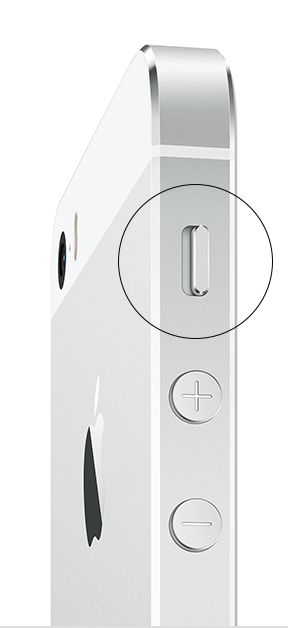
- Restart your device.
- Open an app that has music or sound effects. Adjust the volume with the volume buttons or the slider in Control Center.
- Go to Settings > Bluetooth and turn off Bluetooth.
- If there's still no sound, connect a headset. If you can hear sound through the headset, remove it and clear any dust or debris from the headset jack of your device.
- If the device is in a case, make sure that the case doesn't block the speaker.
- Use a brush to gently clear any debris from the speaker and Lightning connector (or 30-pin dock connector). The brush should be clean and dry and have soft bristles.
- Update your device to the latest version of iOS.
If you followed these steps and still hear no sound or distorted sound, contact Apple Support.
===
===
How to restart Press and hold the Sleep/Wake button until the red slider appears. Drag the slider to turn your device completely off. After the device turns off, press and hold the Sleep/Wake button again until you see the Apple logo .
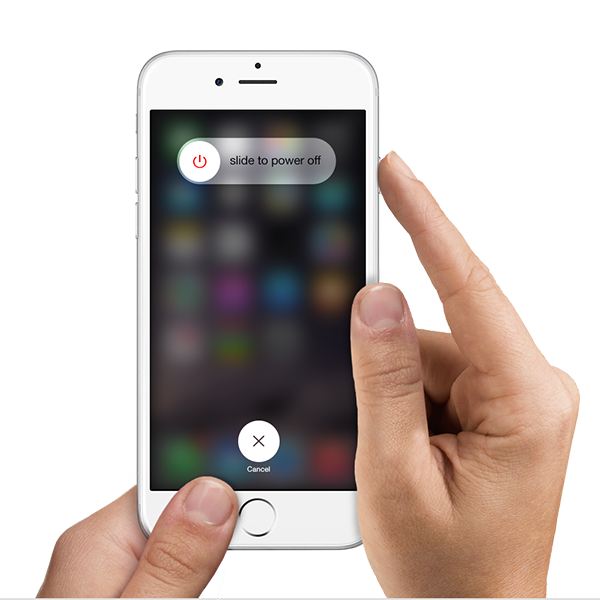
How to reset . You should reset your device as a last resort and only if you can't restart it. To reset, press and hold both the Sleep/Wake and Home buttons for at least 10 seconds, until you see the Apple logo.
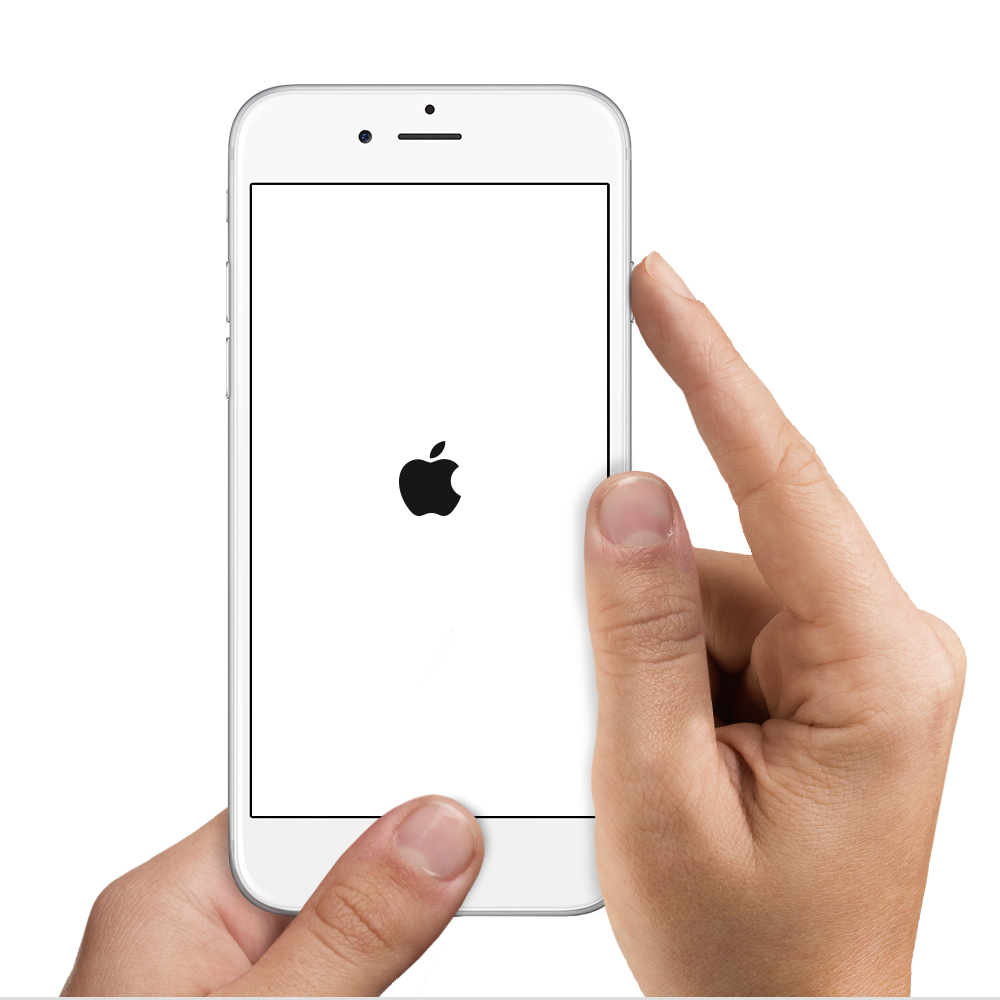
=== Get more help : You can also learn what to do if your device still doesn't respond or doesn't turn on. Last Modified:
Control Center gives you quick access to commonly used settings and apps from anywhere in iOS—including the Lock screen.
To access Control Center, swipe up from the bottom of the screen. If you're using an app that uses similar swipe gestures, like Maps or games, you might have to swipe up twice: once to reveal the handle for Control Center, and a second time to reveal Control Center. To close Control Center, swipe down, tap the top of the screen, or press the Home button.
Control Center on iPhone:
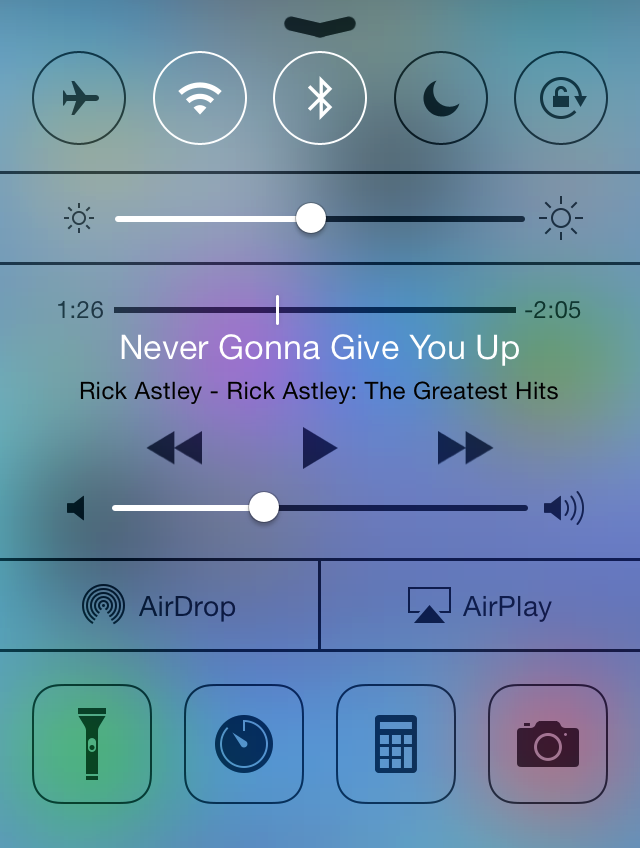 Control Center on iPad:
 In Control Center, you have these options:
- Turn on or off Airplane mode, Wi-Fi, Bluetooth, Do Not Disturb, Mute,
- and Rotation Lock.
- Adjust screen brightness.
- Play, pause, or skip a song, and adjust playback volume.
- Connect to an AirPlay device or toggle between audio outputs.
- Adjust whether your device is discoverable for AirDrop.
Control Center also gives you quick access to these apps:
- Camera
- Timer
- Calculator (iPhone and iPod touch only)
- Flashlight (iPhone and iPod touch only)
If your device isn't locked, you can also access the currently playing audio app by
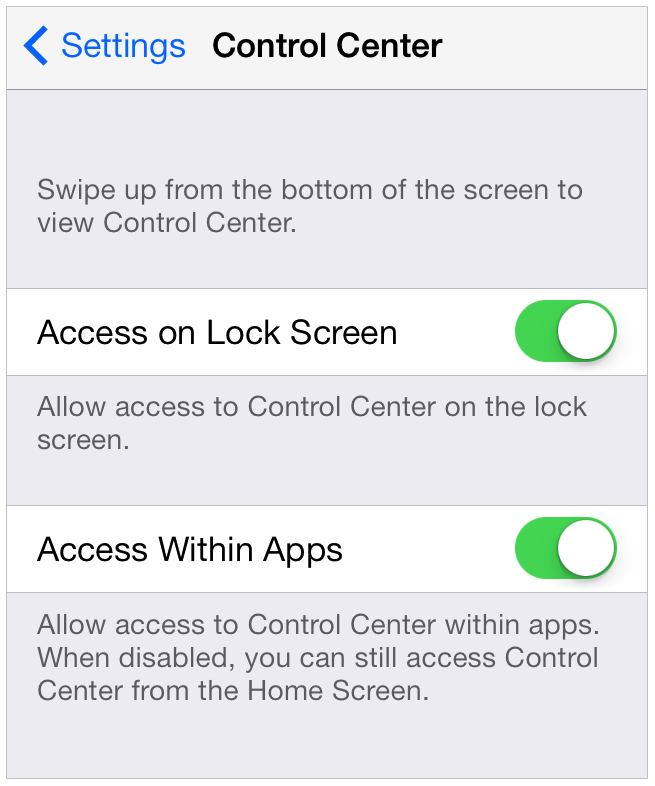
tapping the song title. If you don't want to be able to access Control Center from the Lock screen or
within apps, you can change these settings in Settings > Control Center.
Last Modified:
To access Control Center, swipe up from the bottom of the screen. If you're using an app that uses similar swipe gestures, like Maps or games, you might have to swipe up twice: once to reveal the handle for Control Center, and a second time to reveal Control Center. To close Control Center, swipe down, tap the top of the screen, or press the Home button.
Control Center on iPhone:
Control Center on iPad:
In Control Center, you have these options:
- Turn on or off Airplane mode, Wi-Fi, Bluetooth, Do Not Disturb, Mute,
- and Rotation Lock.
- Adjust screen brightness.
- Play, pause, or skip a song, and adjust playback volume.
- Connect to an AirPlay device or toggle between audio outputs.
- Adjust whether your device is discoverable for AirDrop.
Control Center also gives you quick access to these apps:
- Camera
- Timer
- Calculator (iPhone and iPod touch only)
- Flashlight (iPhone and iPod touch only)
If your device isn't locked, you can also access the currently playing audio app by
tapping the song title. If you don't want to be able to access Control Center from the Lock screen or
within apps, you can change these settings in Settings > Control Center.
Last Modified:
iPad : Sound and speaker has stopped working on it : how to fix .
Sound and speaker has stopped working on iPad : Solutions and Fixes.
Nguồn : http://iphonenosound.com/sound-and-speaker-has-stopped-working-on-ipad-how-to-fix/
If you have no sound on your iPad/ iPad 2/ iPad Mini and iPad Air volume bar it is unbelievably frustrating as you most probably already know. Below you will find a list of solutions, fixes and cures that should resolve the no sound issues. This list is organized from most successful to least successful, though all of these solutions have some merit and may work
The symptoms of iPad no sound problems and Issues include:
– iPad will ring but speaker will not work for anything else.
– iPad no sound at all facetime, apps, music etc.
– iPad no sound stuck in headphone mode, volume bar will come up but with no adjustment ability.
Follow these steps and hopefully they fix your iPad sound and speaker issues.
– iPad will ring but speaker will not work for anything else.
– iPad no sound at all facetime, apps, music etc.
– iPad no sound stuck in headphone mode, volume bar will come up but with no adjustment ability.
Follow these steps and hopefully they fix your iPad sound and speaker issues.
1/ iPad No Sound and speaker , Step 1
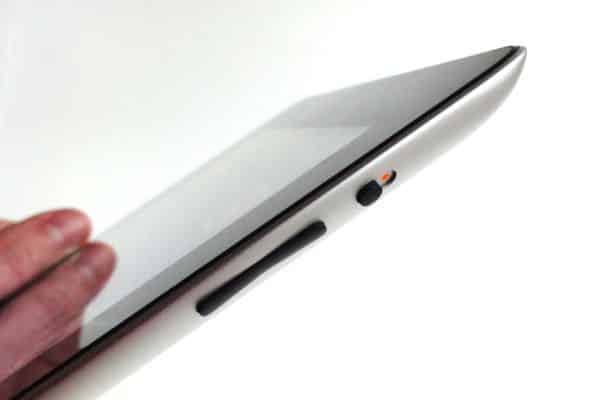
Loud/ Silent switch on exterior of iPad is switched to silent mode which is orange. If so flick the other way to loud mode. This is a step that so many people miss, but it is the most simplest. This also is the most common the the mute button protrudes just a fraction so can be easily moved.
2/ iPad No Sound and speaker , Step 2
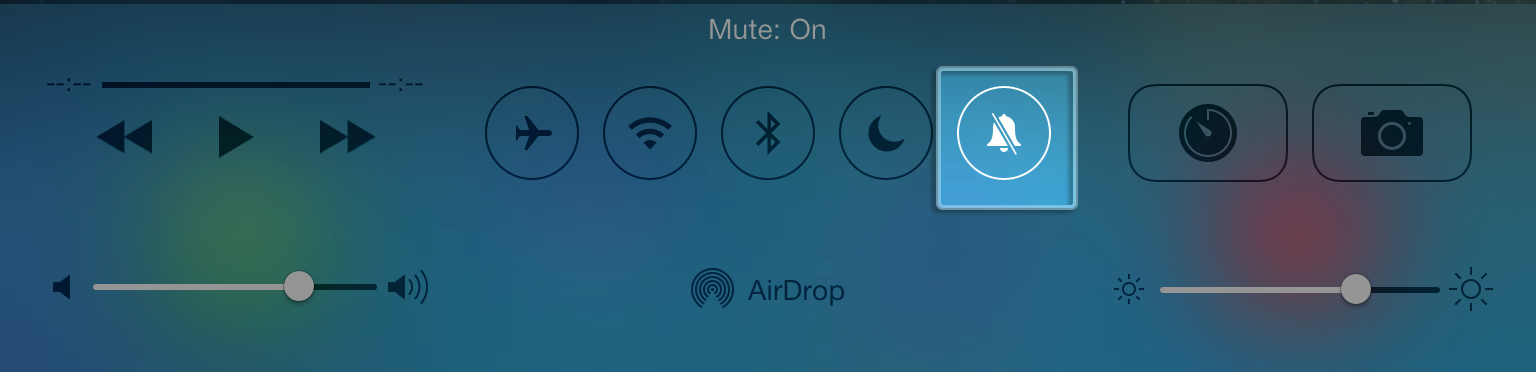
Similar to the above step this also deactivates the mute, sound button within the iPad. Simply slide from the bottom screen going upwards. Once you have done that a control bar will come up, simply press the mute on/ off button.
3/ iPad No Sound and speaker , Step 3

Restart the iPad. Hold the power switch and home button together for 10 seconds. This will restart your iPad, you will not lose any media, contacts, data, etc. If there was a temporary glitch which sometimes arises with new software updates this may eliminate it.
4/ iPhone No Sound and Speaker , Step 4

Reset iPad. Go to settings> general> reset> reset all settings. Before you do this ensure you have backed up your device to the Cloud or iTunes as you will loose all data on your iPad. This is similar to the above step but a more resilient process.
5/ iPad No Sound and speaker , Step 5

This one is a bit strange but seems to be very successful. This is a problem that has plagued iPhones and iPads from day one. When dirt or dust gets into the charging dock it can cover the exposed pins which can sometimes trick the iPad in to thinking it is on a music dock. But this can be sidelined buy using a good old toothbrush. Use the toothbrush to clean the docking area, when you do this do it gently and get the bristles into there good. Also if you use rubbing alcohol, acetone or methylated spirits it will help get all the extra dirt out. As these products evaporate it will not do damage to the connectors.
6/ iPad No Sound and speaker Step 6,
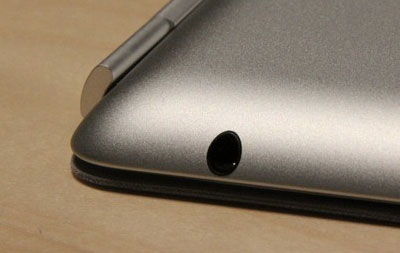
Get your headphones and insert them into the headphone jack of the iPad and the pull them out. Do this for a couple of minutes as sometimes it gets stuck in headphone mode so this normally undoes that.
7/ iPad No Sound and Speaker Step 7,

Restore your iPad on iTunes. Click on your iPad icon when plugged into iTunes and go to restore. If you do this make sure your iPad is backed up as YOU will loose all data, media, contacts, pics, and so on. This puts your iPhone back to factory settings.
8/ iPad No Sound and Speaker Step 8,
Jailbreak your iPad to find the file directories that are causing the fault. By doing this you are deleting the file that is making the iPad think it is on a dock. You will still be able to use music docking station etc. If you have a jail broken iPad or willing to do it then this will be the best option for you. Very simple video and easy to follow, to jailbreak follow my simple tutorial. This tutorial is for the iPhone but is still relative for the iPad.
9/ iPad No Sound and Speaker Step 9,

This one is a bit strange but seem to be quite successful. Turn a hair dryer onto low heat and hover over the speaker outlet for about 5 minutes. I also did the headphone jack as well. There must of been some residual moisture build up which the hair dryer eliminated:)
10/ iPad No Sound and Speaker Step 10,

It may be a hardware problem and simply need to get a replacement through your provider or apple support.
Hopefully some of these steps and solutions have helped restore the speaker sound on your iPad. If you have tried something different that worked for you then please share below.
Subscribe to:
Posts (Atom)