Dùng chế độ Hibernate (ngủ đông) cho máy tính chạy Win 8 hay 10 / How to Enable Hibernation Mode
Sound useful? Who knows why the hibernation option is disabled by default in Windows 8 and 10, but thankfully, enabling it is easy/Quá hửu ích ? Ai biết tại sao chế độ ngủ đông bị vô hiệu mặc định trên Win 8 và 10 , nhưng may thay , cho nó hoạt động trở lại rất dễ
In Windows 8, you can press Windows+I to pull up the “Settings” menu, then select “Control Panel” and then “Power Options”/Ở Windows 8 , nhấn phím Windows + l để hiện ra "Settings" , chọn "Control Panel" > "Power Options" .
Windows 10 users also press Windows+I, but instead select “System”, then “Power and Sleep” from the left hand navigation panel, and finally “Additional power settings” at the bottom of the Power and Sleep menu/Ở Win 10 , bạn cũng bấm Windows + l , nhưng chọn "System" > "Power and Sleep" , nằm ở phía trái , và chọn "Additional power settings" ở phía dưới .
It’s far more efficient in both versions of Windows, however, to simply press WIN+R to pull up the run dialog box, type “powercfg.cpl”, and press enter/ Cũng có thể bấm phím Windows + R , gỏ chữ "powercfg.cpl" và bấm OK .
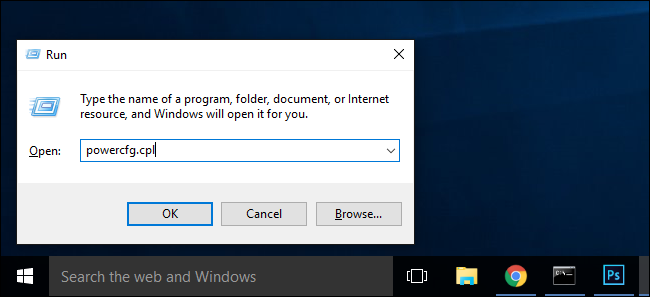
This command is direct shortcut to the “Power Options” menu. From here onward, the steps are absolutely identical for both operating systems/ Lịnh này sẽ đưa bạn tới "Power Options" . Từ đó về sau cũng giống ở cả hai HĐH .
Select “Choose what the power buttons down” from the left hand navigation panel/Chọn "Choose what the power buttons down" nằm ở phía trái .

At the top of the window, click on “Change settings that are currently unavailable” to enable the options we need to toggle/Nhấp vào "Change settings that are currently unavailable" để cho phép chọn lựa các giải pháp .

Scroll to the bottom of the window and check “Hibernate: Show in Power menu.” and then click “Save changes”/ Kéo chuột đi xuống và đánh dấu vào ô "Hibernate : Show in Power menu" và nhấp "Save changes" .

Go ahead and close the Power Options control panel. The changes are effective immediately; no reboot required/ Đóng lại trang Power Options . Các thay đổi này hiệu lực tức khắc ; ko cần tái khởi động .

Now when you select the power options menu you’ll see the power configuration entry you crave: “Hibernate”. Give it a click and Windows will save the memory to your hard disk, shut down completely, and wait for you to return to exactly where you left off/Giờ đây khi bạn bạn chọn Power Options Menu , bạn sẽ thấy thêm chữ Hibernate . Nhấp 1 cái vào đó , HĐH sẽ lưu trí nhớ vào ổ cứng , tắt máy hoàn toàn , và chờ bạn để đưa bạn đúng vào lúc bạn cho máy ngủ đông .
Dịch từ : https://www.howtogeek.com/134808/how-to-re-enable-hibernation-in-windows-8/
Dịch từ : https://www.howtogeek.com/134808/how-to-re-enable-hibernation-in-windows-8/
